

Homebridge is the quiet power tool every Apple smart home fan should know, allowing you to add devices to the Apple Home app and Siri voice control that wouldn’t normally work there. If you have lights, plugs, sensors, or thermostats originally designed for Alexa, SmartThings, or Google, but wish they “just worked” in your Apple setup, Homebridge is worth understanding—warts and all.
Key Takeaways
- Homebridge lets you control many smart home devices with Apple Home—even if they don’t officially support HomeKit.
- It’s extremely versatile but does require some technical know-how, especially when troubleshooting plugin updates or resource issues.
- Reliable performance comes down to dedicated hardware, careful plugin selection, and regular maintenance.
- What Is Homebridge and Why Should You Care?
- How to Set Up Homebridge: Step-by-Step
- Advanced Analysis & Common Pitfalls
- Conclusion & Next Steps
- Frequently Asked Questions
What Is Homebridge and Why Should You Care?
Homebridge is free, open-source software that acts as a bridge between Apple HomeKit and thousands of devices that don’t natively support HomeKit. It runs on a small computer or server on your home network and translates commands so that non-Apple smart devices can suddenly appear and behave like full Apple Home devices. This means you can control your non-HomeKit garage opener, Z-Wave sensors, or smart plugs with Siri and the Apple Home app, no need to buy new hardware.

Homebridge is a must-have if you’re invested in Apple’s ecosystem, frustrated by the limited number of officially supported devices, or trying to unify gadgets from different brands into one interface. Experts report Homebridge is especially attractive on a budget since it provides local control without replacing your existing smart home gear. While Apple has increased native HomeKit support recently, many popular smart home products still lack official compatibility, leaving a gap that Homebridge fills efficiently.
Still, it’s important to know that Homebridge is best viewed as a smart integration tool—not a total replacement for broader platforms like Home Assistant. Its main job is to pull your scattered devices under one Apple-friendly umbrella, not to serve as a full smart home logic engine.
How to Set Up Homebridge: Step-by-Step
Here’s how to go from zero to controlling non-HomeKit gadgets in your Apple Home app. Be prepared to spend some time on initial setup—the payoff is worth it.
- Pick Your Hardware: The easiest and most reliable method is to dedicate a small computer (Raspberry Pi, Intel NUC, or an old laptop/mini PC) to run Homebridge. Avoid sharing the device with other heavy tasks—a full disk or low memory are proven ways to run into stability issues. Some users even report smart device failures when Homebridge runs out of resources. If you want visual management, consider using apps like Homemanager for Homebridge for iOS.
- Install Homebridge: Most opt for the Homebridge UI version for an easy web-based dashboard. Download the installer on your chosen hardware from the official site and follow the instructions for your OS (Raspberry Pi, Windows, macOS, Linux).
- Configure Your Network: Connect your Homebridge computer to your home’s main network via Ethernet or stable WiFi. This ensures reliable device communication. Assign a reserved IP address if possible.
- Add Plugins: Using the web UI, search for plugins supporting your devices (examples: SmartThings, Hubitat, TP-Link Kasa Plugs, Z-Wave bridges). Each plugin’s documentation will guide you through connecting your devices.
- Set Up in Apple Home: Homebridge generates a QR code or pairing code. Use your iPhone/iPad’s Home app to scan and add Homebridge as a new accessory. Now, any device added via a Homebridge plugin shows up in Apple Home just like a real HomeKit device.
- Tune and Maintain: Test devices, assign rooms, set up automations, and tweak configurations as needed. Update plugins and Homebridge itself regularly for security and compatibility.
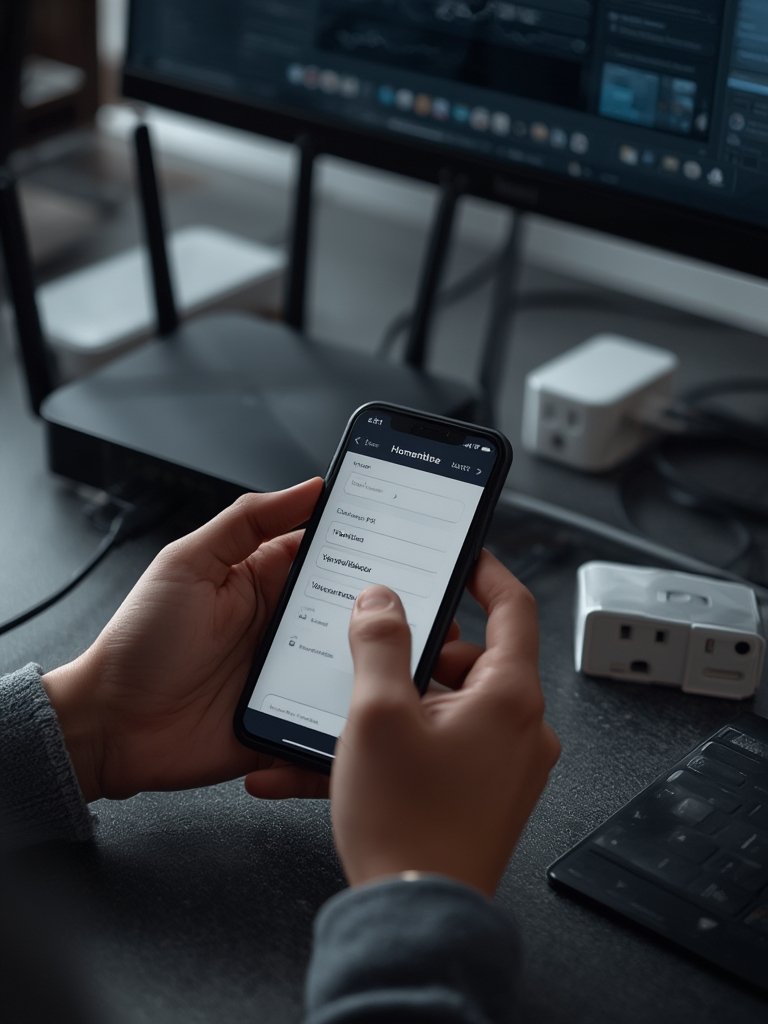
If you want to further scale up, apps like Homemanager let you manage Homebridge/HOOBS servers, visually configure plugins, and enable features like child bridges for safer plugin sandboxing.
Related resource: Interested in energy-saving upgrades? Check out our analysis of what is a smart thermostat and how these can integrate into your Homebridge setup.
Advanced Analysis & Common Pitfalls
Homebridge is powerful, but not foolproof. The most common frustrations and risks are tied to plugin stability, system resources, and the technical nature of setup.
- Plugin Updates Breaking Functionality: With 900+ plugins, some updates introduce bugs or break compatibility. The new 2024 Homebridge release (v1.8.0) adds per-plugin logs and “issue reporting” that surfaces resolved cases (such as 69 login fixes in one update), but you’ll still want to test changes before updating everything.
- Resource Contention: If you share your Homebridge device with other projects (like running a media server), a full hard disk or exhausted RAM can cause Homebridge and your smart devices to become unresponsive. One user reported their garage door stopped working due to this.
- Technical Configuration Demands: Adding some advanced non-HomeKit devices (like Z-Wave through SmartThings or Hubitat) requires copying API keys, device IDs, and custom settings—steps that less technical users may find daunting.
- Security & Privacy: Homebridge itself is safe and runs locally, avoiding cloud dependency. You may see an “Uncertified Accessory” warning from Apple during pairing; most users accept this with zero issues over years of use. Apps like Homemanager now support two-factor authentication for remote access, further improving security.
Support for legacy and obscure device ecosystems is a huge advantage for Homebridge. For example, SmartThings security sensors, Z-Wave hub controllers, and TP-Link Kasa plugs (non-HomeKit versions) can all be brought into Apple Home, but official HomeKit doesn’t support them at all. Several users have reported these integrations as “set and forget” once everything is dialed in, reducing the need for Alexa or Google Home apps.
| Device/Ecosystem | Official HomeKit Support? | Works via Homebridge? | Notes |
|---|---|---|---|
| Z-Wave Garage Controllers | No | Yes | Requires Z-Wave hub (SmartThings/Hubitat) & plugin |
| TP-Link Kasa Plugs (non-HomeKit) | No | Yes | Direct plugin integration, official HomeKit versions cost more |
| GE Motion Dimmers (via Hubitat) | Partial/Unreliable | Yes | Homebridge plugin (Tonesto7) is better than native HomeKit |
| Non-HomeKit Smart Thermostats | No | Yes | Many integrations (Google Nest, Ecobee, etc.) available |
If you’re looking for other ways to optimize your smart home hardware, see our guide on self emptying robot vacuum for pet hair—automation isn’t just about lights and sensors.
Want a kitchen that’s as smart as your devices? Explore organic modern kitchen strategies you can pull off alongside your Homebridge project.

Conclusion & Next Steps
Homebridge is the missing layer between non-HomeKit devices and a seamless Apple smart home. Its ability to unify devices from Alexa and SmartThings to Kasa and Hubitat gives you real control, usually with no additional hardware cost. You’ll need to be proactive about updates, choose your plugins carefully, and dedicate at least minimal hardware to ensure it runs smoothly. Most importantly, Homebridge means you don’t have to replace good gear just to make it work with your Apple ecosystem. If you’re ready to modernize your home—and put homebridge at the heart of it—start exploring plugins and setup options today.
Ready for more home upgrades? Browse our top product picks and recommendations for everything from lighting to pet gadgets, or check out strategies for how to organize your kitchen pantry to match your new tech-empowered lifestyle!
Frequently Asked Questions
Is Homebridge free to use?
Yes, Homebridge is open-source software and completely free. You may have costs associated with your hardware (like a Raspberry Pi or mini PC) to run it reliably.
How secure is Homebridge for privacy-conscious users?
Homebridge runs locally in your home network, avoiding cloud storage and third-party servers. There have been no widespread reports of privacy risks with Homebridge or vetted plugins, and you may use two-factor authentication with management tools like Homemanager.
What is the easiest device to run Homebridge on?
A Raspberry Pi is the most popular dedicated device for Homebridge because it’s cheap, efficient, and easy to set up. Any modest unused PC or mini computer will work if you follow hardware recommendations and don’t overload it.
Can I use Homebridge for power monitoring or energy-saving automations?
Yes. Plugins for power monitoring are in active development, letting you track smart plugs and devices to optimize energy use. Not every power consumption device is fully supported yet, but this ecosystem is growing quickly.
Do I need to be a programmer to use Homebridge?
No programming is required for the basics, especially with the Homebridge UI interface and visual apps like Homemanager. However, setting up some advanced plugins may require reading instructions, copying API keys, or basic troubleshooting.